Lanes
Think of the mixer as a DJ console for distortion curves: each lane holds its own curve with its own fader, and you can stack up to 100 of them.
Add or remove curves with the +/− buttons (or plus/minus on the keyboard). Adding a curve duplicates the last one. You can rename channels by right-clicking on the channel label (Default labels are H1, H3, H5, … for the harmonic exciters).
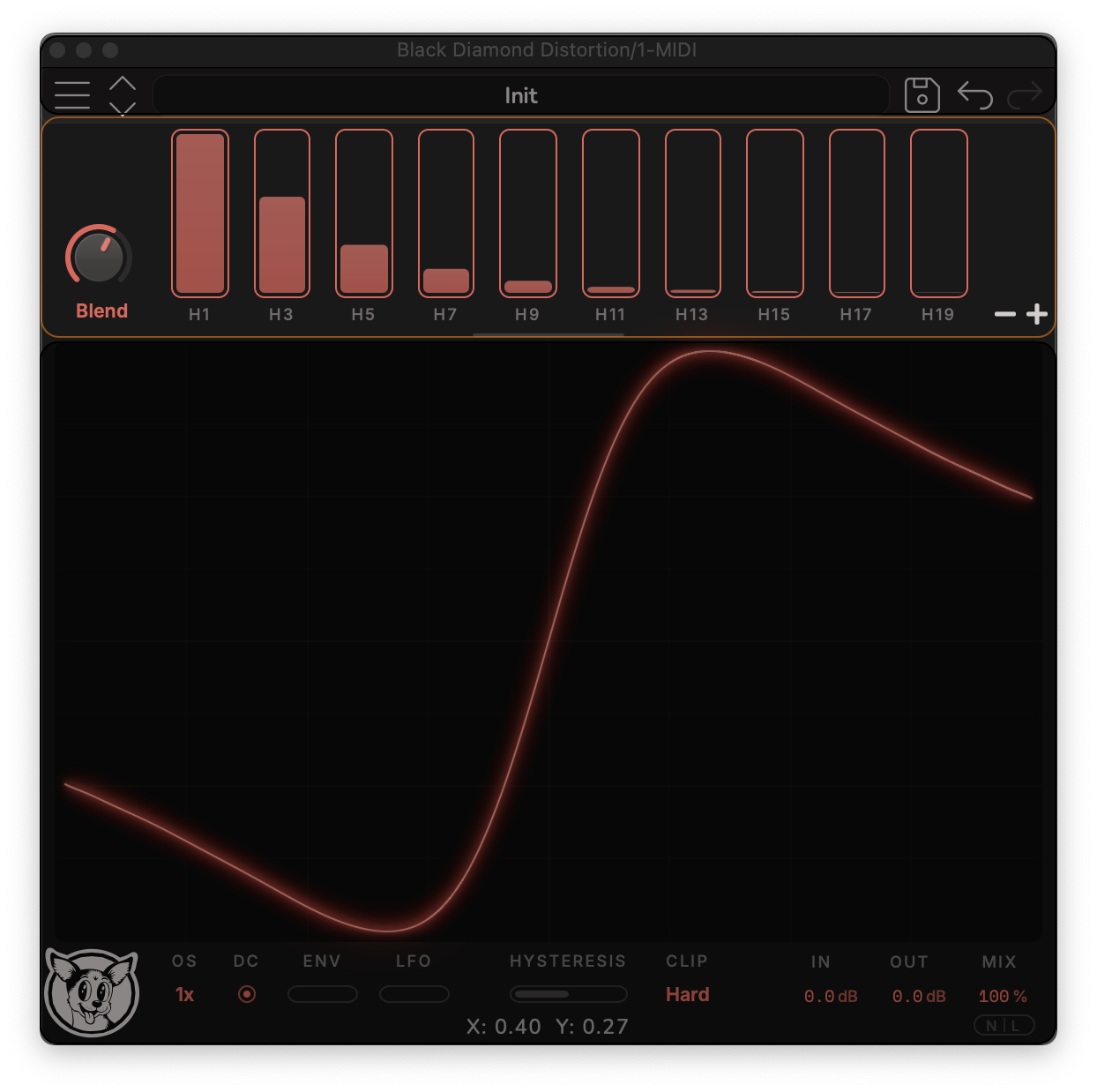
Blend
Blend is the default mode: the channel sliders control how much influence each curve has on the composite - the “recipe” mode for combining flavors.
Right clicking the slider will “solo” the channel by setting all the other channels to zero.
Each channel also has a depth slider along its side that sets the Morph dial’s modulation depth for that channel. Set the depths, then sweep the Morph dial - or automate it from your DAW - and the recipe rebalances itself like a macro.
Scan
In Scan mode the sliders disappear, leaving just the Morph dial, which sweeps through the lanes in order like a wavetable position - distortion as a wavetable. If you produce electronic music, this is your mode.
Series
In Series mode the sliders reappear, but they mean something different: each slider is now the gain into that distortion stage, with the lanes chained one into the next like a row of guitar pedals. The Morph dial becomes a macro over the slider positions - so you can control how hard each stage in the chain is being pushed, all from one knob.
Morph
The Morph dial is in the left corner of the transfer function editor. Morph is the macro that drives the Blend crossfade, the Scan position, or the Series stage gains.
The visualizer
The display always shows the total distortion - the combined result of every mixed curve plus the Character panel’s hysteresis, coercivity, and bias. Your input signal is overlaid on the curve at its actual level (after the input gain and pre tone stage), so you can see exactly where on the curve your signal is riding.
The visualizer overlays additional information that follows your focus: select a channel and that channel’s own curve is drawn in the secondary color; open a modulation panel and the modulation traces over the display; open a tone stage and its frequency response appears.
Editing a curve
Click a channel’s label and choose an editing mode: Spline, Paint, Harmonic, Equation, or Preset. Each editor has its own chapter:
- Harmonic Exciter - dial in exact harmonics.
- Spline Editor - sculpt the curve with a few powerful anchors.
- Brush Editor - draw it freehand (the Paint mode).
- Equation Editor - type math, get distortion.
- Curve Browser - load a saved or community curve into the lane (the Preset mode).