Preset Browser Navigation
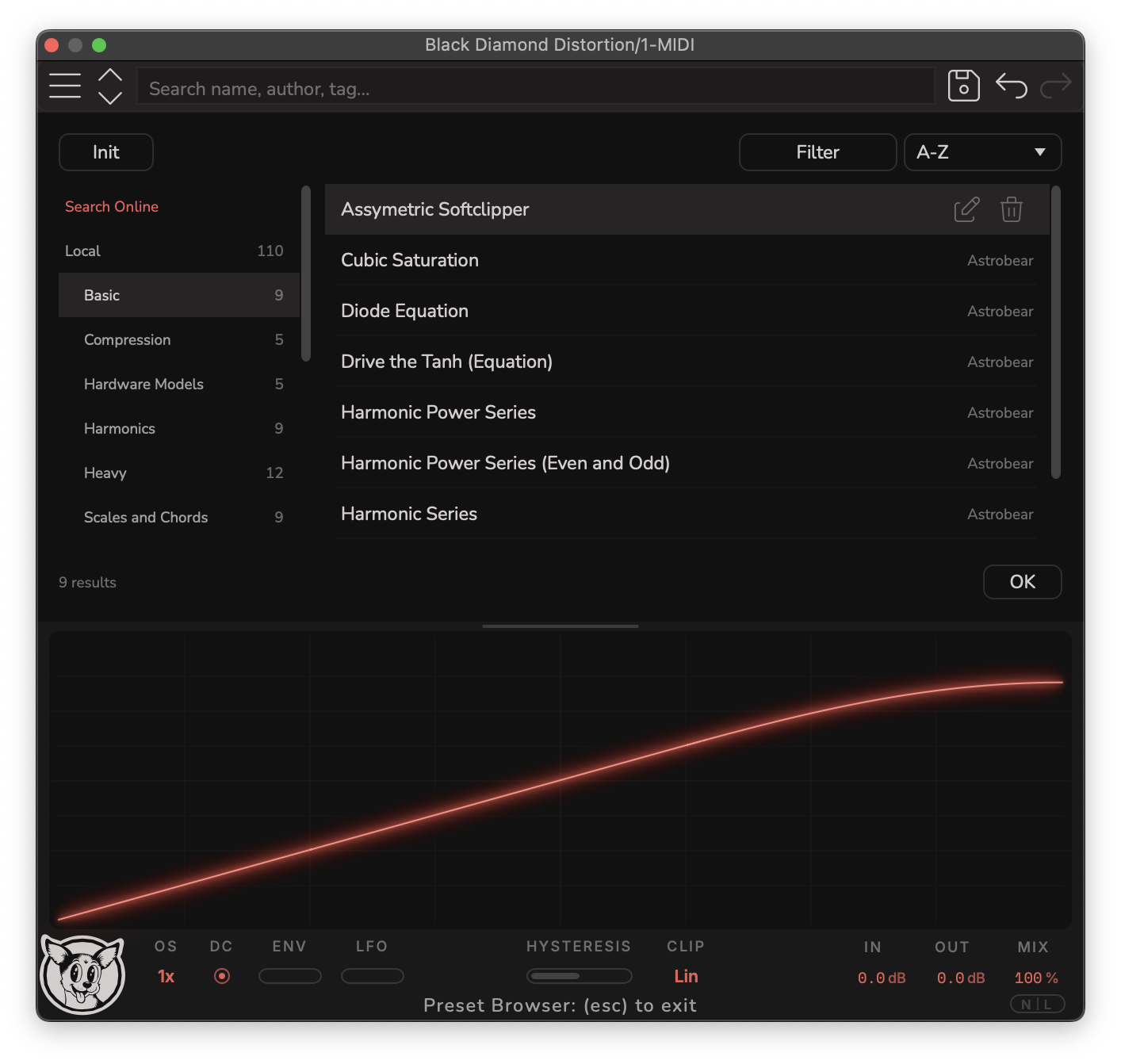
Click the preset menu in the top panel to reveal the full preset browser.
The browser’s left column is a file browser for your local library, organized into full patch presets and single curve presets, and further by subdirectory.
- Click a directory to filter to it, search by keyword, or filter by tags - the right column shows the presets that match.
- Click a preset to load it, which also brings up the options to edit its metadata or delete it.
- Click OK to collapse the preset browser (or escape key shortcut)
- When preset browser is collapsed you can still use prev/next arrow to browse presets one-by-one.
Managing preset folders
Right-click the local library to manage it - for example, showing the directory’s location on disk. By default there’s a directory for factory presets with sub-directories for categories, and another location for user and downloaded presets. But you can add your own directory if you keep presets in a particular location or on an external drive.
The community browser
Click Search Online to browse the community library without leaving the plugin: search by name, filter by tag, and sort by most downloaded, newest, and more.
Clicking an online preset previews it - the patch loads straight from the web without saving anything to disk. If you like it and want it locally, click the download button; it lands in your downloads folder by default.
One tip while browsing: most of the controls are hidden, but you can always drag the visualizer to move the Morph parameter - so if the preset has the morph macro wired up, you can sweep through the whole range of shapes built into the patch before deciding.
Saving presets
Saving a patch is one click: hit save, choose a filename and location. Presets carry metadata - name, description, tags, and artist (auto-stamped from your artist settings).
Sharing your presets
If you build a patch the community would benefit from, upload it from inside the plugin. Uploading requires an account - the bare minimum needed to prevent misuse of the cloud storage - and once you’ve verified, it’s a single click on the upload button. Your preset appears in the Aspen Community library for everyone, with your artist name embedded to credit your work. (Downloading never requires an account.)
Transfer Functions
Similar to how synthesizers have both preset patches and preset waveforms (e.g. preset wavetables in Serum). Black diamond distortion has both system presets and curve presets.
.bddpresetis a system patch - it saves and restores every parameter and curve in the plugin..tfuncis a single curve.
.tfunc is what is generated by black diamond probe when we capture hardware, as the hardware capture is only a scan of input/output relationship and has no association with other parameters.
Note: As future Black Diamond plugins are revealed it will become more clear why having .tfunc files in a separate format is valuable. Future Virtual Analog plugins will accept your .tfunc files as the “tradeable currency” of the ecosystem. So you can use the same transfer function curve as a distortion, or as the custom building block for other virtual analog plugins.